How to Plan a Road Trip with Google Maps
Google Maps is one of my favorite road-trip tools, but it can also make a terrible itinerary look completely reasonable because every pin seems close when the entire country is squeezed onto one screen.
I use it to organize possibilities, test the geography, and navigate each day, but I do not let the blue route line decide how much time a place deserves.
What Google Maps Is Best For
I use Google Maps for four things: saving places, checking geographic order, testing drive times, and navigating once the trip begins. Those jobs are simple enough that I do not need a complicated road-trip app for most vacations.
Google currently lets signed-in users save places to custom lists and find those lists under the You or Saved areas depending on platform. Its interface changes over time, so I focus on the features rather than memorizing where every button lives forever.
Step 1: Create One List for the Trip
Start by creating a saved list named for the actual trip, such as “Oregon Coast 2027” or “Door County Weekend.” Google Maps currently supports custom place lists on desktop and mobile when you are signed into your Google Account.
The official Google Maps list guide explains the current process. I prefer one trip list instead of separate restaurant, hotel, and attraction lists because seeing everything together makes the geography much easier to understand.
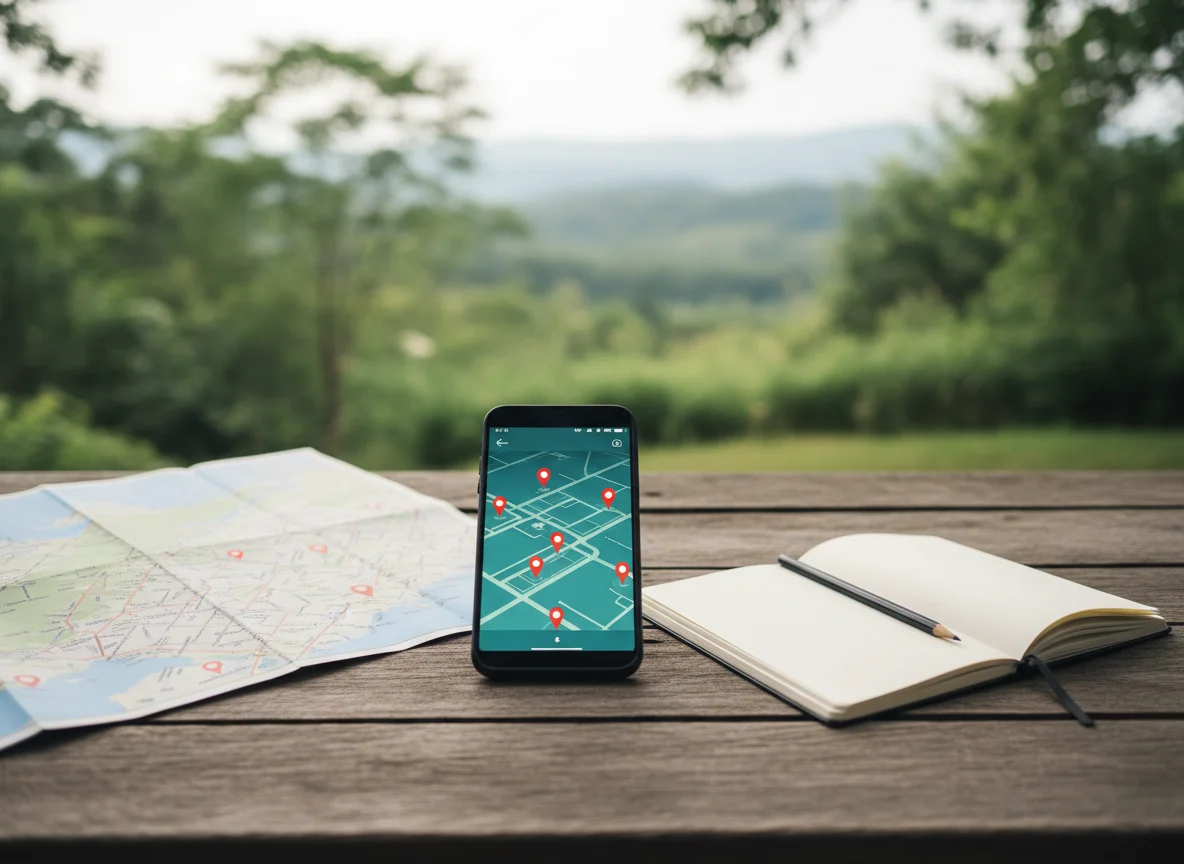
Step 2: Save Everything You Are Considering
At this stage, I am deliberately generous. Hotels, parks, restaurants, bakeries, viewpoints, museums, gas stations, ferry terminals, beaches, and random places somebody recommended can all go on the map.
I am not committing to those places yet. I am building the visual pile of possibilities before I start deleting the ones that make no geographic sense.
Add Notes While You Still Remember Why You Saved It
If a saved list or planning system lets you add notes, write one short reason the place is there. “Great sunset,” “closed Tuesdays,” “best breakfast,” or “permit needed” is far more useful a week later than wondering why you starred an empty-looking patch of highway.
For anything genuinely important, I also save the official website outside Maps. Business listings are useful, but the park, ferry, restaurant, or attraction itself should be the final source for current hours and reservations.
Step 3: Zoom Out and Look for Clusters
This is where the map becomes a planning tool instead of a collection. I look for groups of pins that naturally belong to the same day or hotel base.
If six saved places sit around Traverse City and three sit around Petoskey, that immediately suggests two bases. It also tells me that the one random pin two hours east needs to make a very good argument for itself.
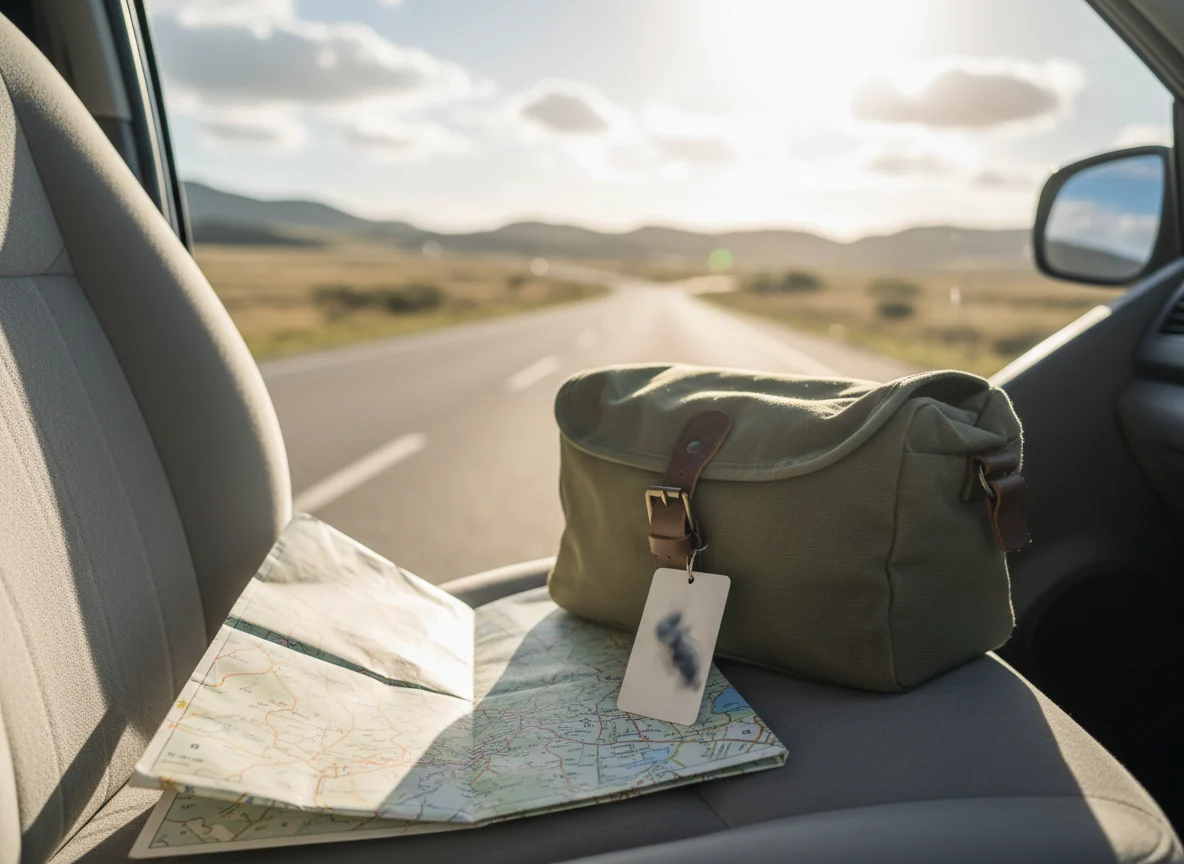
Step 4: Choose Your Overnight Bases Before Building Every Day
I decide where to sleep based on the clusters, evening atmosphere, and how much hotel moving I want. The hotel does not need to be in the mathematical center of every attraction.
A walkable town can be a better base than a highway interchange that saves fifteen minutes in the morning. My road trip hotel guide covers that decision in much more detail.
Step 5: Test the Route in Geographic Order
Once the bases are chosen, I test each day’s likely stops in driving directions. The goal is not to create the final navigation route yet but to see whether the order makes sense.
If the route crosses itself, doubles back repeatedly, or drives through tomorrow’s town twice, I reorganize it. A clean route saves more time than almost any tiny packing or departure trick.
Do Not Build One Giant Route for the Whole Vacation
I prefer separate daily routes because they are easier to understand and much easier to change. A two-week route with every restaurant and scenic stop becomes visual spaghetti.
Daily planning also exposes overstuffed days. Eight saved stops may look harmless on the big map and ridiculous once you realize they require six separate parking experiences before dinner.
Step 6: Check the Drive Time Without Stops
I look at the pure driving time first, then mentally add the real-world road-trip time. Google Maps is estimating travel, not your coffee stop, park entrance line, beach walk, lunch, restroom break, or twenty minutes spent looking for parking.
My road trip route-planning guide explains how I translate map time into a realistic sightseeing day. On scenic roads, three hours of navigation can easily become an eight-hour day.
Step 7: Compare Alternate Routes
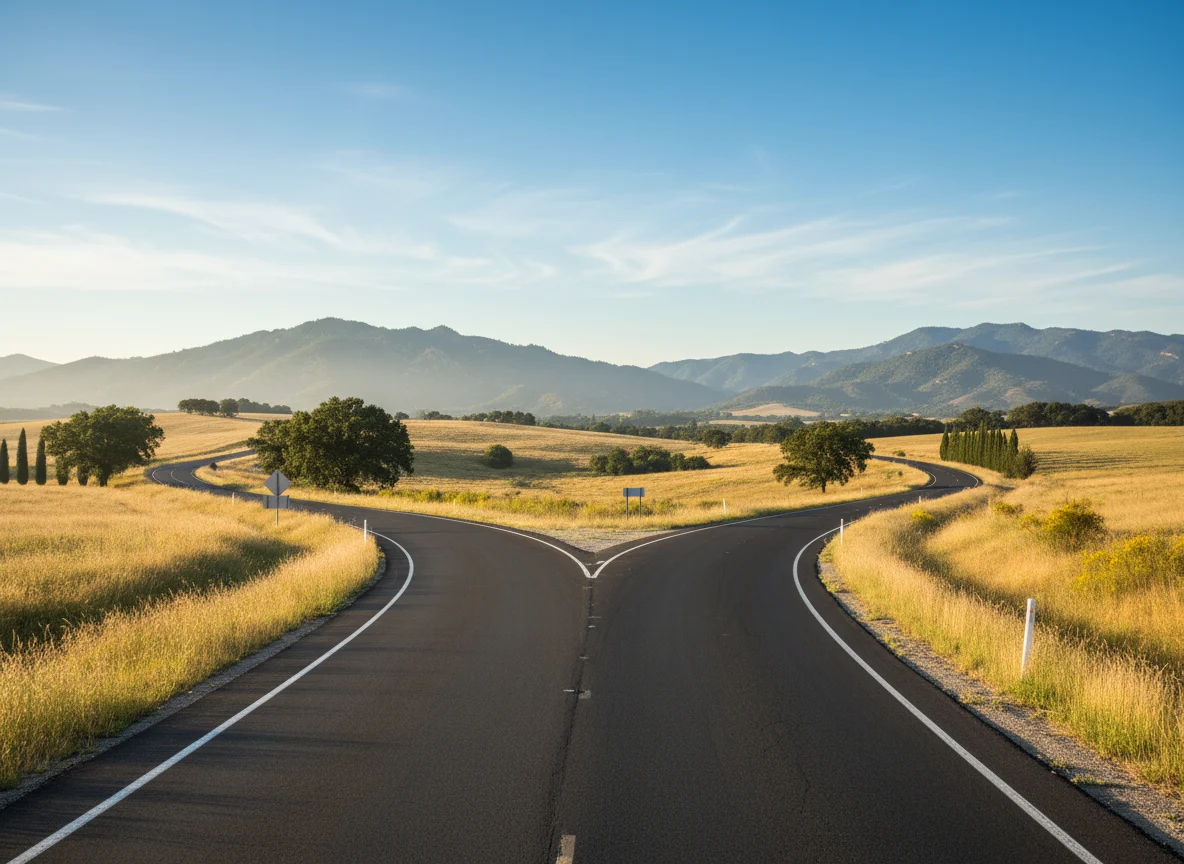
Google Maps often shows alternate routes in gray, which is useful for understanding whether a scenic road adds fifteen minutes or two hours. I compare the alternatives before automatically choosing the fastest one.
A coastal highway, historic road, or mountain pass may be worth the extra time when the drive is part of the reason for traveling. A random suburban detour usually is not.
Use Route Options Carefully
Google Maps can offer route options that avoid tolls, highways, or ferries, though the exact interface differs by device. I use those as planning tests rather than permanent settings.
Avoiding tolls can add a lot of time, and avoiding highways can route you onto roads that are technically valid but terrible for a loaded rental car. Always look at what changed after selecting an avoidance option.
Step 8: Search Along the Route for Practical Stops
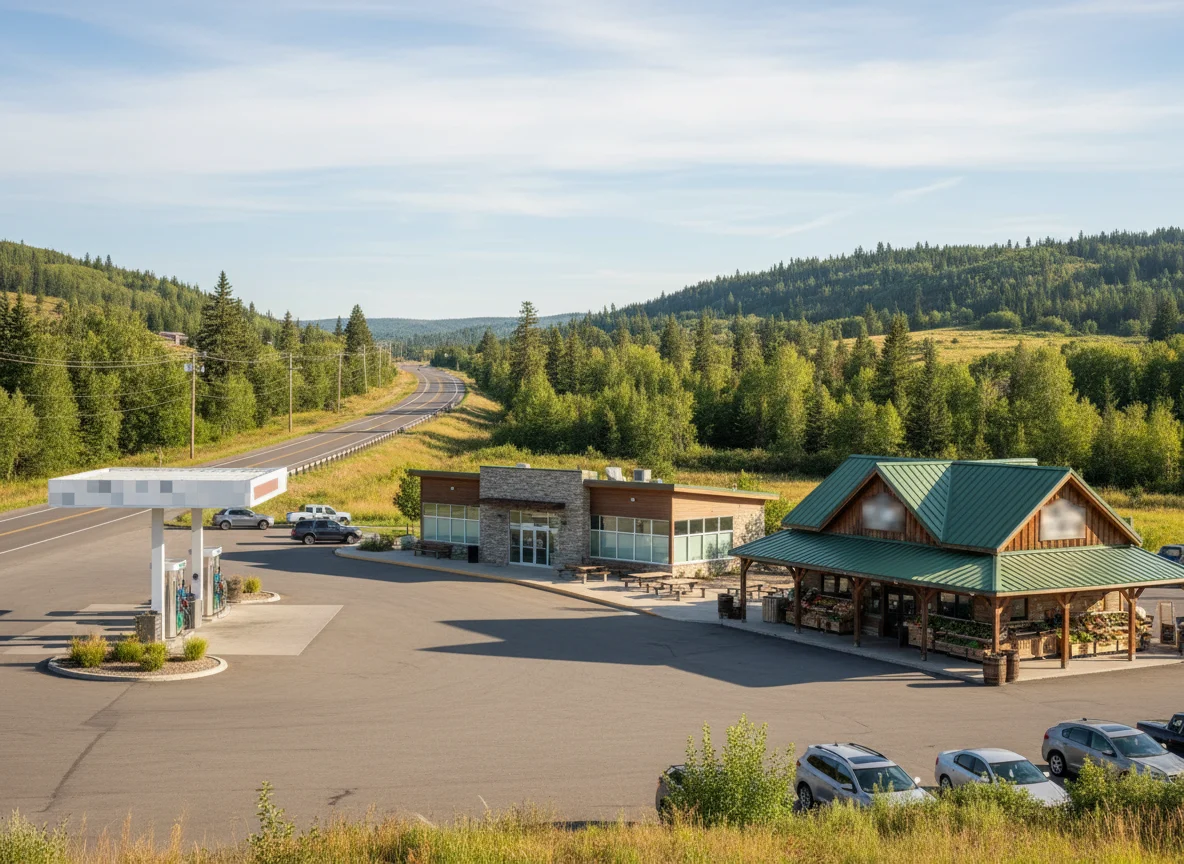
Once the daily route is sensible, I look for gas, groceries, coffee, pharmacies, and meal options where I will actually need them. Google Maps can search categories along a route and show the approximate detour or added travel time.
This is especially useful in remote areas. I would rather know the last easy fuel stop before the Keweenaw tip, Highway 93 in the Canadian Rockies, or rural Iceland than discover it from the warning light.
Step 9: Save the Hotel and Tomorrow’s First Stop
I make sure every hotel is saved and easily searchable. I also save the first major destination of the next day, especially when the route begins before I have coffee and my brain has fully joined the vacation.
For properties with confusing entrances, cabins, campgrounds, or lodges, I save the actual arrival instructions too. A pin can land on the right property and still send you toward the wrong gate.
Step 10: Download Offline Maps
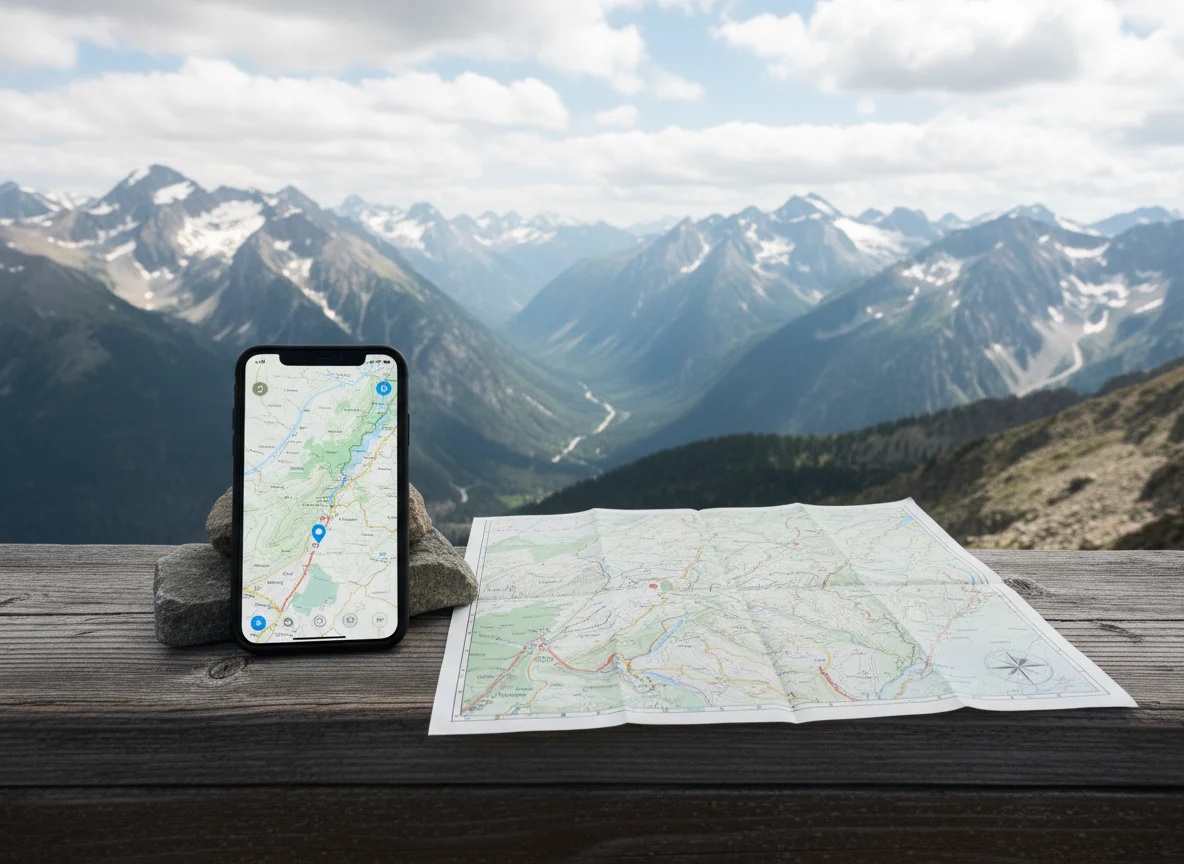
This is the Google Maps feature I care about most on remote road trips. The app currently allows users to download selected map areas on supported phones and tablets for navigation when internet service is unavailable.
Google’s offline map instructions explain the current process. Download enough area to cover the route, not only the exact town where you are sleeping.
Offline Maps Are Not a Magic Backup for Everything
An offline map can help with roads and navigation, but it does not mean every live feature will work normally. Traffic, closures, business updates, transit, or other internet-dependent information may be limited.
I still screenshot critical ferry reservations, park permits, hotel addresses, and official closure information. The road map and the trip documents solve different problems.
Update Offline Maps Before You Leave Wi-Fi
Downloaded maps can expire or need updates, so I check them before a remote day. I do not wait until the parking lot with one bar of service to discover the map never finished downloading.
Google Maps built into some vehicles can also manage offline maps, though capabilities depend on the manufacturer, region, and data plan. I would check the actual car rather than assuming it behaves like the phone app.
Step 11: Check Traffic on Travel Morning
The itinerary I planned two months ago does not outrank today’s crash, construction zone, or closure. Google Maps is useful for current traffic, but I also check the official road authority when a specific pass, park road, ferry approach, or storm-sensitive highway matters.
For U.S. road trips, state 511 systems are excellent complements. In places like Iceland, Canada, or the Scottish Highlands, the local road authority matters even more.
Do Not Blindly Follow a Reroute
Navigation can suggest a technically faster road that you have no business driving in a large vehicle, winter storm, flood, or unfamiliar mountain region. I look at the alternate before accepting it.
If a road is closed by an official agency, Maps is not permission to use a local backroad around the gate. Road closures win.
Use Saved Lists to Cut Stops, Not Just Add Them
The most valuable moment in my Google Maps planning happens when I start deleting. I look at the trip list and ask which pins are genuinely better than the open time they will consume.
If a restaurant requires a forty-minute detour from an already good food town, it goes. If a viewpoint sits right on the route and takes fifteen minutes, it probably stays.
Color-Code or Separate Lists Only When the Trip Is Huge
For a normal one-week trip, one list is easier. For a month-long route, I might separate confirmed hotels, food, and optional stops or create a list for each region.
Organization is useful until maintaining the organization becomes another travel project. I do not need a database to find coffee in Door County.
Google Maps Is Not the Best Tool for Every Road
National parks, forest roads, ferries, seasonal passes, and international rural routes often have specialized official maps that matter more. Download those when the road system is complex.
For hiking, I use the park’s official trail information rather than assuming a driving app understands the route. For backcountry roads, I use the land manager’s current vehicle and access guidance.
How I Plan a Three-Day Trip in Google Maps
For a long weekend, I save perhaps fifteen to twenty possibilities, choose one hotel base or two sequential bases, then plan only Friday arrival, Saturday’s anchor, and Sunday’s route home. Most of the saved pins remain optional.
My revised three-day U.S. road trips are good examples because each route stays geographically tight enough to see the logic immediately on a map.
How I Plan a Seven-Day Trip
For a week, I identify two or three overnight clusters and test the drives between them. Then I assign one main activity to each full day and leave at least one half-day loose.
I do not build seven separate minute-by-minute routes before the trip. The map should make the week understandable, not lock it in place.
My Google Maps Road Trip Checklist
- Create one saved list for the trip.
- Save all serious possibilities.
- Look for geographic clusters.
- Choose overnight bases.
- Test each day separately.
- Compare alternate routes.
- Check toll, highway, and ferry options intentionally.
- Save practical fuel and grocery stops for remote areas.
- Download offline maps.
- Save official permits and reservations outside Maps too.
- Check live traffic and official road conditions before driving.
- Delete unnecessary pins before they become obligations.
One More Google Maps Help Page I Use
Google’s directions and route-planning help is useful when the interface changes or a route option disappears from where you remember it. I would use that for the app mechanics and still rely on official road agencies for closures and seasonal access.
The Map Is Supposed to Make the Trip Simpler
I know I have planned the route well when I can look at the map and immediately understand where I am sleeping and why I am driving each direction. If it looks chaotic before the trip begins, it is probably going to feel chaotic from the driver’s seat too.
Google Maps is excellent at helping me see the shape of a road trip. I just never let it convince me that because something fits on the screen, it fits in the day.